Shortcuts
Keyboard shortcuts for masoc on Mac and iPad.
Every shortcut in masoc, for the library, the editor, Retouch and video. And a small mode that lets you edit a photo with the keyboard alone.

In the library.
Browse, star, preview and open, without reaching for the pointer.
The arrow keys move a focus ring through the grid, and the grid scrolls along with it. Everything with ⌘ or ⌃ also sits in the menu bar.
| Keys | What it does | Works on |
|---|---|---|
| Left ArrowRight ArrowUp ArrowDown Arrow | Move the focus ring through the grid. | Mac · iPad |
| Return | Open the focused photo. While selecting, select or deselect it. | Mac · iPad |
| Space | Preview the focused photo. Space again closes it. | Mac · iPad |
| S | Star or unstar the focused photo. While selecting, the whole selection. | Mac · iPad |
| Escape | Close the preview, stop selecting, or clear the focus ring. | Mac · iPad |
| CommandA | Select all photos. | Mac · iPad |
| CommandDelete | Delete the selected photos. | Mac · iPad |
| CommandO | Import photos. | Mac · iPad |
| CommandV | Import images from the clipboard. | Mac · iPad |
| CommandE | Export the selected photos. | Mac · iPad |
| ControlH | Merge the selection to HDR (two or more photos). | Mac · iPad |
| ControlM | Merge the selection to a panorama (two or more photos). | Mac · iPad |
| CommandPlusorCommandMinus | Larger or smaller thumbnails. | Mac · iPad |
| CommandZorShiftCommandZ | Undo or redo a star. | Mac · iPad |
In the editor.
One key per tool, one per category, and Space for the original.
Press a tool’s key again to leave it, or press ⎋. The number keys and the arrow keys rest while a tool is open, so they never act behind your back.
| Keys | What it does | Works on |
|---|---|---|
| C | Crop. | Mac · iPad |
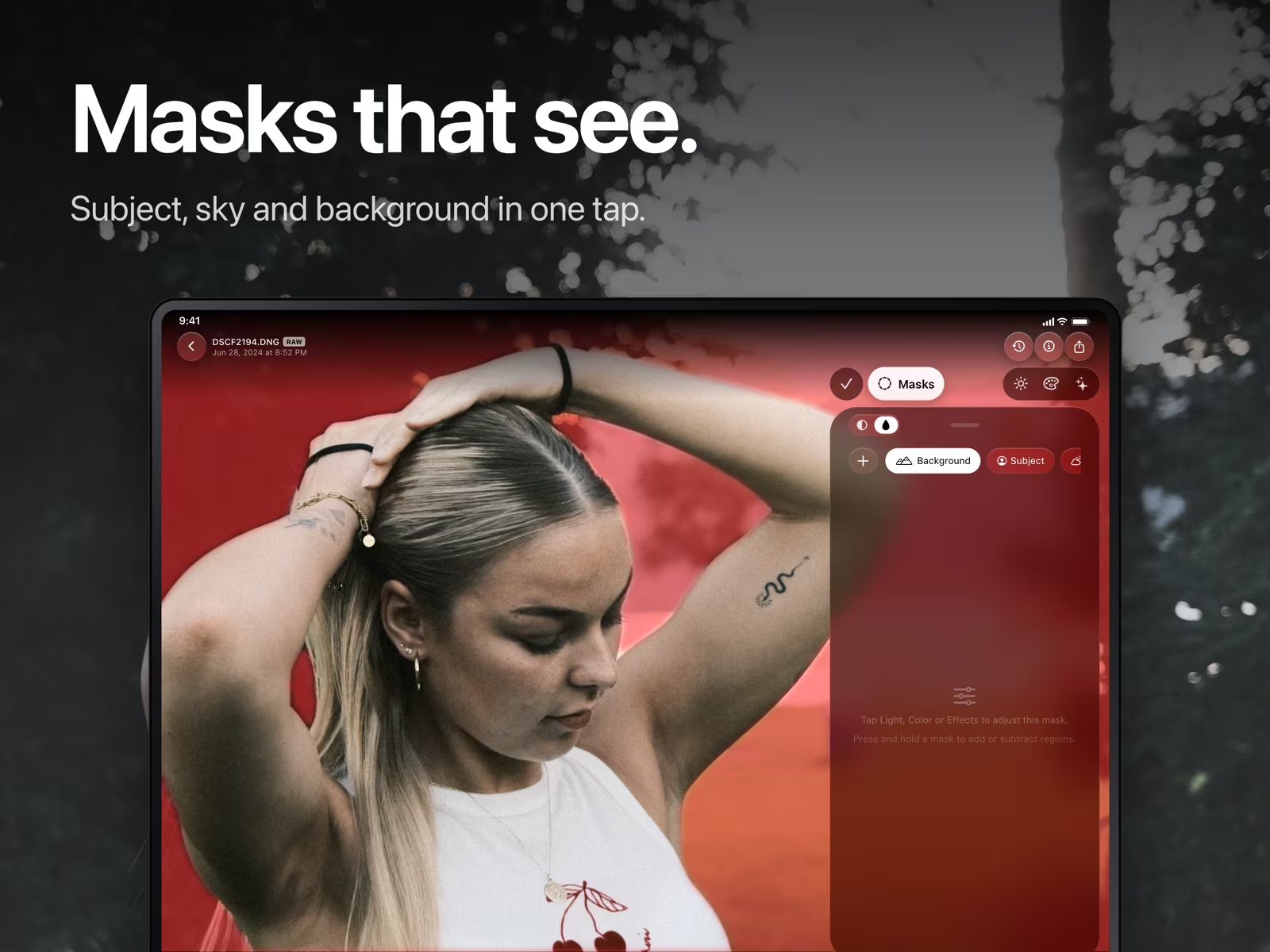
| M | Masks. | Mac · iPad |
| B | Blur. | Mac · iPad |
| R | Retouch. | Mac · iPad |
| 1to4 | Light, Color, Effects and Looks. | Mac · iPad |
| Escape | Leave the open tool, or cancel the white balance picker. | Mac · iPad |
| Space | Hold to see the original, let go to see your edit. | Mac · iPad |
| Left ArroworRight Arrow | Previous or next photo. | Mac · iPad |
| CommandZorShiftCommandZ | Undo or redo. | Mac · iPad |
| ShiftCommandR | Reset all adjustments, after asking. | Mac · iPad |
| CommandE | Export the photo. | Mac · iPad |
| CommandI | Show or hide the photo info. | Mac · iPad |
| CommandW | Back to the library. | iPad |
In Retouch
| Keys | What it does | Works on |
|---|---|---|
| Left BracketorRight Bracket | Smaller or larger brush. | Mac · iPad |
| Slash | Next variation of the picked spot. | Mac · iPad |
| Delete | Delete the picked spot. | Mac · iPad |
Keys and pointer
| Keys | What it does | Works on |
|---|---|---|
| OptionorCommand | Hold while you scroll over the photo to zoom around the pointer. | Mac |
| Option | Hold while you drag in Retouch or Censor to move the photo instead of painting. | Mac |
In the video editor.
Play, compare and crop from the keyboard.
Undo, redo, reset, export and info use the same shortcuts as for photos.
| Keys | What it does | Works on |
|---|---|---|
| Space | Play or pause. | Mac · iPad |
| Backslash | Hold to see the original. | Mac · iPad |
| C | Crop. Press again to leave. | Mac · iPad |
| Escape | Leave the crop. | Mac · iPad |
| CommandW | Back to the library. | iPad |
The menu bar.
Every command has a home, and greys out where it doesn’t apply.
On Mac the commands live in the menu bar. On iPad with a keyboard, iPadOS lists the same ones. Undo and Export follow you: in the editor they act on the photo, in the library Undo takes back a star and Export takes the selection.
Modal editing, for photos.
Hold ⌥, and the arrow keys play the sliders. Your trackpad can take the day off.
A word from the developer. Photo editors are built around the pointer: grab a slider, drag, let go, grab the next one. Text editors like vi found another way decades ago, with modes, where the same keys do different things depending on the mode you’re in. masoc borrows the idea for its sliders.
Hold ⌥ for a quarter of a second. A small bar marks one slider and the others dim, so you always see which one the keys will move. On a page you open for the first time, that’s the top slider, Exposure on Light. Keep ⌥ down and the arrows work the sliders. Let go and the panel looks as before. Unlike vi, getting out is easy.
Slider mode, on one card
- Option
- Hold: mark a slider, dim the rest
- OptionUp ArroworOptionDown Arrow
- Pick the slider above or below
- OptionLeft ArroworOptionRight Arrow
- Move it one step
- OptionShiftLeft ArroworOptionShiftRight Arrow
- Move it ten steps
- OptionDelete
- Reset it
- OptionTaborOptionShiftTab
- Next or previous category
If your fingers reach for h, j, k and l: close, but it’s the arrow keys. Emacs fans get a modifier to hold down, so everyone feels at home.
How far one press goes
- Exposure. 0.05 EV a press, 0.50 EV with ⇧, anywhere from −5 to +5 EV.
- Contrast, Highlights, Saturation and most others. 1 a press, 10 with ⇧.
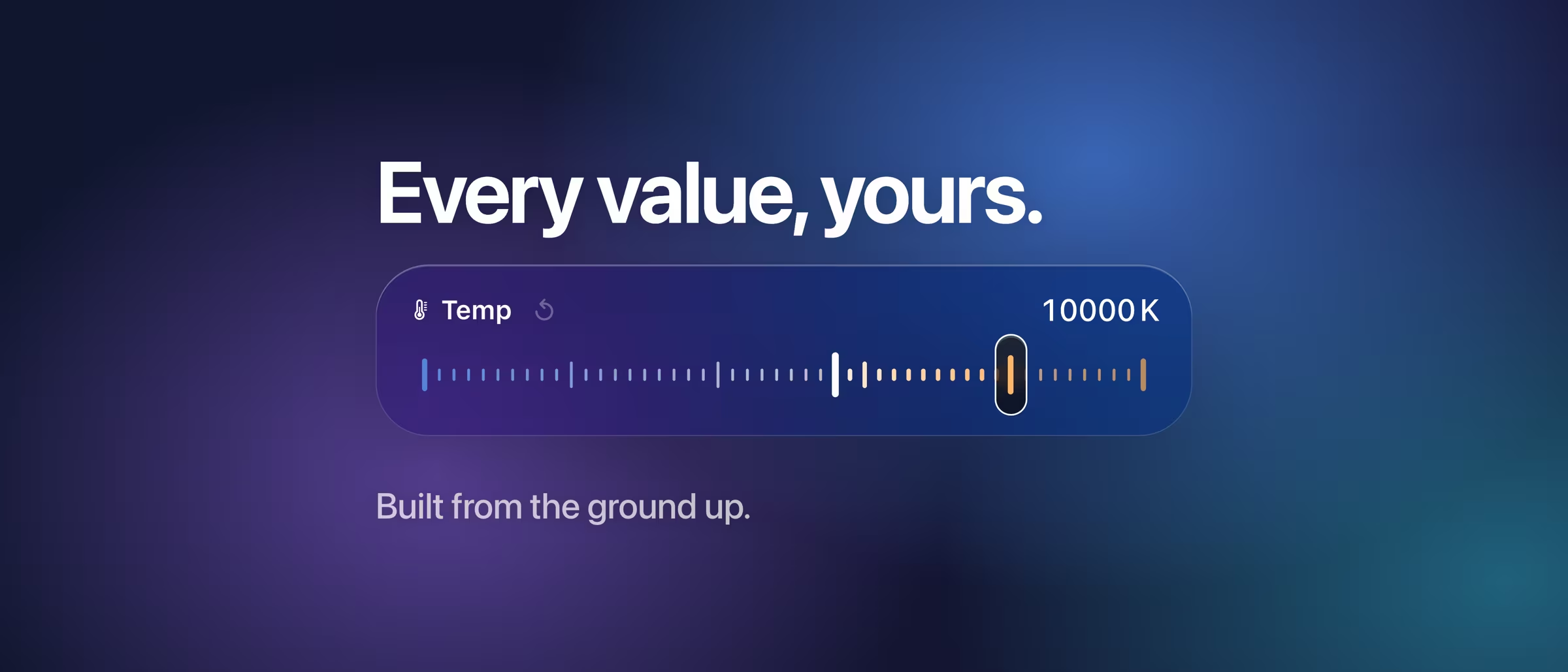
- Temp on RAW. One mired a press, shown in steps of 50 K. Around daylight, ⇧ moves it roughly 300 K.
- Hue Shift and the grading hues. 1° a press.
- Look intensity. 1 percent a press, from 0 to 120. ⌥⌫ sets it back to 100.
Hold an arrow key and it picks up speed: presses less than 0.15 seconds apart count as a run, and after 10 of them each press moves two steps, after 24 four. Every value lands on the slider’s step and stays inside its range, just like a drag. Each page remembers where you left the mark, ⌥↑ and ⌥↓ stop at the first and the last slider, and ⌥⇥ goes round from Looks back to Light. And every change lands in the undo history like any other edit.
A session, keys only
A JPEG, freshly opened. Eleven moves, no pointer.
- 1Light
- OptionholdThe mark lands on Exposure
- OptionRight Arrow×6Exposure +0.30 EV
- OptionDown Arrow×2Contrast, then Highlights
- OptionShiftLeft Arrow×3Highlights −30
- OptionTabColor, the mark on Temperature
- OptionRight Arrow×5Temperature +5
- OptionDeleteSecond thoughts: Temperature 0
- Optionlet goThe marks fade
- SpaceholdBefore and after
- CommandEExport. Trackpad untouched.
Slider mode works while no tool is open and the white balance picker is off. On Mac it steps aside while ⌘ or ⌃ is held and while you type in a text field, where ⌥← still jumps a word.
Under the hood.
A few decisions behind the keys, for the curious.
- ⌘ shortcuts sit in the menu bar. You can find them there, and they grey out when they don’t apply. Single keys like C, M and 1 to 4 live in the editor itself.
- The slider keys are no menu commands. A greyed-out menu item would swallow them while a tool is open.
- On Mac, masoc reads the slider keys from the event stream. A shortcut would beat a focused text field, where ⌥← and ⌥⌫ move and delete word by word.
- On iPad, ⌥ is heard through Game Controller. SwiftUI has no hook for a held modifier there, and UIKit only tells the focused view, but the hardware keyboard reports ⌥ on its own.
- The marks wait 250 milliseconds. On Mac, ⌥ with a scroll zooms the photo, and the marks shouldn’t flash across the panel every time.
- A key press is a drag in disguise. It runs through the same code as your finger: snapped to the step, kept in range, saved to the history.
Coming soon.
The beta has ended. The App Store is next.
masoc is being prepared for the App Store. Sign up for the newsletter, and you’ll hear first when it lands.
Questions
- Does masoc have keyboard shortcuts on iPad?
- Yes. With a hardware keyboard, iPad gets the same shortcuts as the Mac, slider editing with Option and the arrow keys included. A few pointer extras, like zooming with Option and a scroll, are Mac only.
- Can I edit a photo with the keyboard alone?
- Yes. Hold Option: the up and down arrows pick a slider, left and right move it one step, ten with Shift. Option-Delete resets it, and Option-Tab switches between Light, Color, Effects and Looks.
- How do I compare my edit with the original?
- Hold the Space bar in the editor. masoc shows the original while the key is down and your edit again when you let go. In the video editor, hold the backslash key.
- Why do the arrow keys switch photos in the editor?
- Left and right go to the previous and next photo while no tool is open. Hold Option and they move the picked slider instead, so both live on the same keys without getting in each other’s way.
Mac, iPad and macOS are trademarks of Apple Inc.