RAW with a look
iPhone RAW with a film look.
Shoot RAW on your iPhone, keep every bit of headroom, and still end up with a film look. Here is the whole workflow, from the shutter to the export.
Why RAW, and why a look.
RAW gives you room. A look gives you a mood.
An iPhone RAW file with a film look gives you two things at once. The RAW keeps far more of what the sensor saw than a HEIC or JPEG does, so exposure, color and white balance still have room to move when you edit. A bright sky can come back, and a warm lamp can turn neutral.
But straight out of the camera, a RAW looks plain. It has no style yet. That is why people still want a look: Portra warmth, Classic Chrome calm, CineStill glow. The trick is to keep the look separate from the RAW, so you can choose it later, change it, or dial it down.
ProRAW or RAW, in short.
Two kinds of DNG, both made for editing.
- Apple ProRAW combines a standard RAW with iPhone image processing such as Smart HDR and Deep Fusion. It runs on iPhone 12 Pro and later Pro models. A ProRAW file is about 25 MB at 12 MP and about 75 MB at 48 MP, 10 to 12 times larger than HEIF or JPEG.
- Bayer RAW is the sensor data itself, in its Bayer pattern, saved as a DNG. Apple has offered it to camera apps since iOS 10. It has no lossy compression and more bits of precision.
Sources: Apple Support, About Apple ProRAW and the iPhone User Guide, Take Apple ProRAW photos, and Apple’s WWDC 2021 session Capture and process ProRAW images, checked in October 2026.
Step 1: shoot with RAW+.
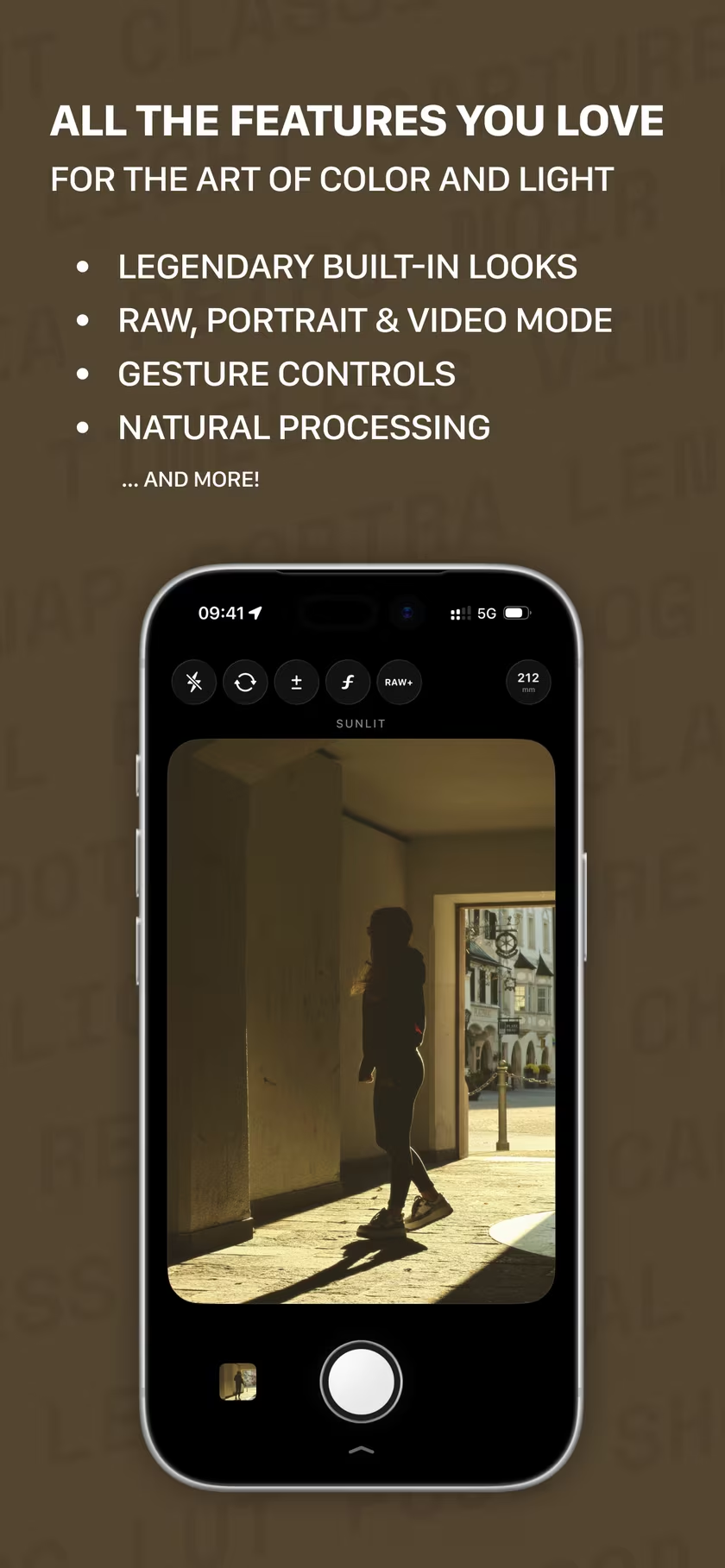
A film look in the viewfinder, a clean DNG beside it.
IIWII, the film simulation camera by the developer of masoc, shows the look live while you shoot. Open its settings, go to Processing & Export, and turn on RAW+. Leave RAW Format on DNG.
- Two files per shot. The photo with the look baked in, as HEIF or JPEG, and the DNG without any look. Both land in Photos.
- ProRAW or Bayer RAW. On iPhones with ProRAW, IIWII saves ProRAW. Every other iPhone gets a Bayer RAW at 12 MP, which needs a physical lens and no digital zoom.
- Only RAW, if you like. With Standard: Only RAW turned on, a shot with the Standard look saves just the DNG.
Prefer Apple’s Camera app? On a Pro model, go to Settings › Camera › Formats and turn on Apple ProRAW or ProRAW & Resolution Control. In Camera, tap HEIC or JPEG at the top, then RAW. You get the DNG, without a look.
Step 2: develop the DNG in masoc.
White balance first, then light.
Open the DNG in masoc from Photos, Files or the share sheet. It shows a RAW badge.
- White balance. Under Color, the temperature slider runs in Kelvin from 2,000 to 100,000 K, and Tint from −150 to +150. Start from As Shot, or pick Daylight (5,500 K), Cloudy (6,500 K), Shade (7,500 K) or Tungsten (2,850 K).
- Exposure. Under Light, Exposure runs from −5 to +5 EV in steps of 0.05.
- Highlights. Pull Highlights below 0 to bring a bright sky back, and lift Shadows to open up dark corners. Whites and Blacks set the ends.
Order matters a little. masoc sets RAW white balance in the decoder, before the look, so the look starts from the colors you picked. Exposure and the light sliders act after the look, so you can keep adjusting them once the look is on. Everything else about RAW in masoc is on the RAW editor page.
Step 3: add the same look.
The look you shot with, now on the RAW.
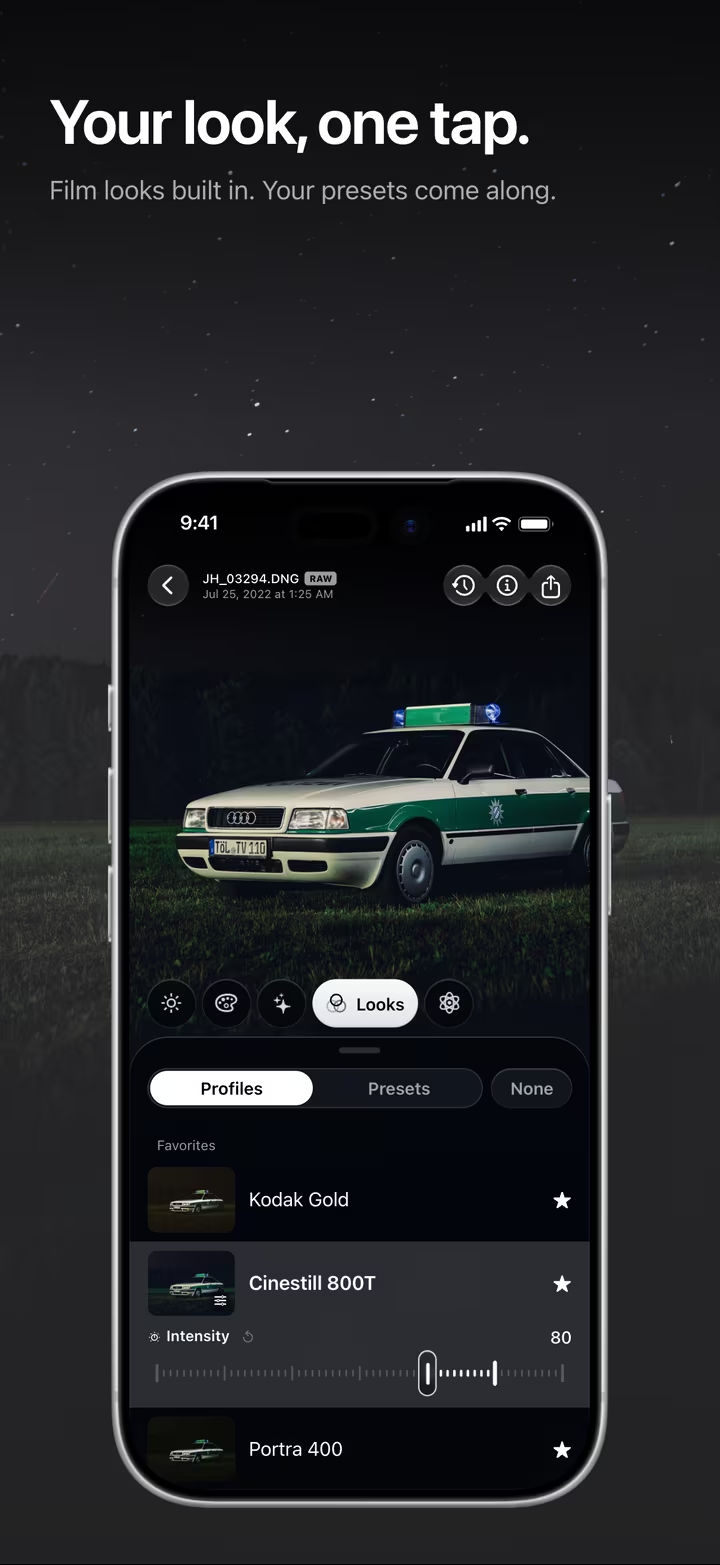
Open Looks › Profiles and pick the look you shot with in IIWII. All 22 built-in profiles of masoc ship in IIWII too, on the same color tables, so Portra 400, Kodak Gold, Cinestill 800T or Classic Chrome look the same in both apps. The Fujifilm looks take the same route through F-Log2. IIWII has eight looks of its own, like Kodachrome, Tri-X and Redscale, which are not in masoc.
Set the intensity from 0 to 120 percent. Most IIWII looks add a touch of grain while you shoot. In masoc, grain is separate: under Effects › Grain, set Grain, Size and Roughness. All 22 looks side by side are on film simulations.
Step 4: save it, then export.
One edit, ready for the whole shoot.
- Save. Open Export, pick HEIC, JPEG or PNG, and choose Save current look. Name it and pick the parts it keeps. Leave Crop & Geometry and Masks out, since those belong to one photo.
- Reuse. The look now sits under Looks › Presets. One tap puts it on the next DNG.
- Export. Save as HEIC, JPEG or PNG, to Photos, Files or the share sheet. Your DNG stays untouched.
Not sure whether to commit to a look while shooting or later? Camera or editor weighs both.
IIWII is available now on the App Store, with more at iiwii.info. masoc is being prepared for the App Store. Sign up for the newsletter to hear first when it lands.
Questions
- Does the film look end up in the RAW file?
- No. With RAW+ on, IIWII saves two files: the photo with the look baked in, as HEIF or JPEG, and a DNG without any look. In masoc you add the same look to the DNG under Looks › Profiles.
- Is the IIWII DNG ProRAW or regular RAW?
- On iPhones that support Apple ProRAW, IIWII saves ProRAW. Every other iPhone gets a Bayer RAW DNG at 12 MP, which needs a physical lens and no digital zoom.
- How big is an iPhone ProRAW file?
- Apple gives about 25 MB at 12 MP and about 75 MB at 48 MP, which is 10 to 12 times larger than a HEIF or JPEG file.
- Can I use the same look in IIWII and masoc?
- Yes. All 22 built-in profiles of masoc ship in IIWII too, built on the same color tables, so a look like Portra 400 or Classic Chrome matches in both apps. IIWII has eight more looks of its own.
- How do I put one look on a whole shoot?
- Edit one DNG, then open Export and choose Save current look. Pick the parts it keeps, and the look appears under Looks › Presets, ready for every other photo with one tap.
Apple, iPhone, Apple ProRAW, Kodak, Portra, Kodachrome, Tri-X, Fujifilm, Classic Chrome, CineStill and App Store are trademarks of their respective owners. masoc and IIWII are not affiliated with them.