Too digital?
Photos that look too digital.
Over-sharpened iPhone shots, flat camera RAWs, skin that looks like plastic. Why digital photos often feel lifeless, what really helps, and how film looks give them depth again.
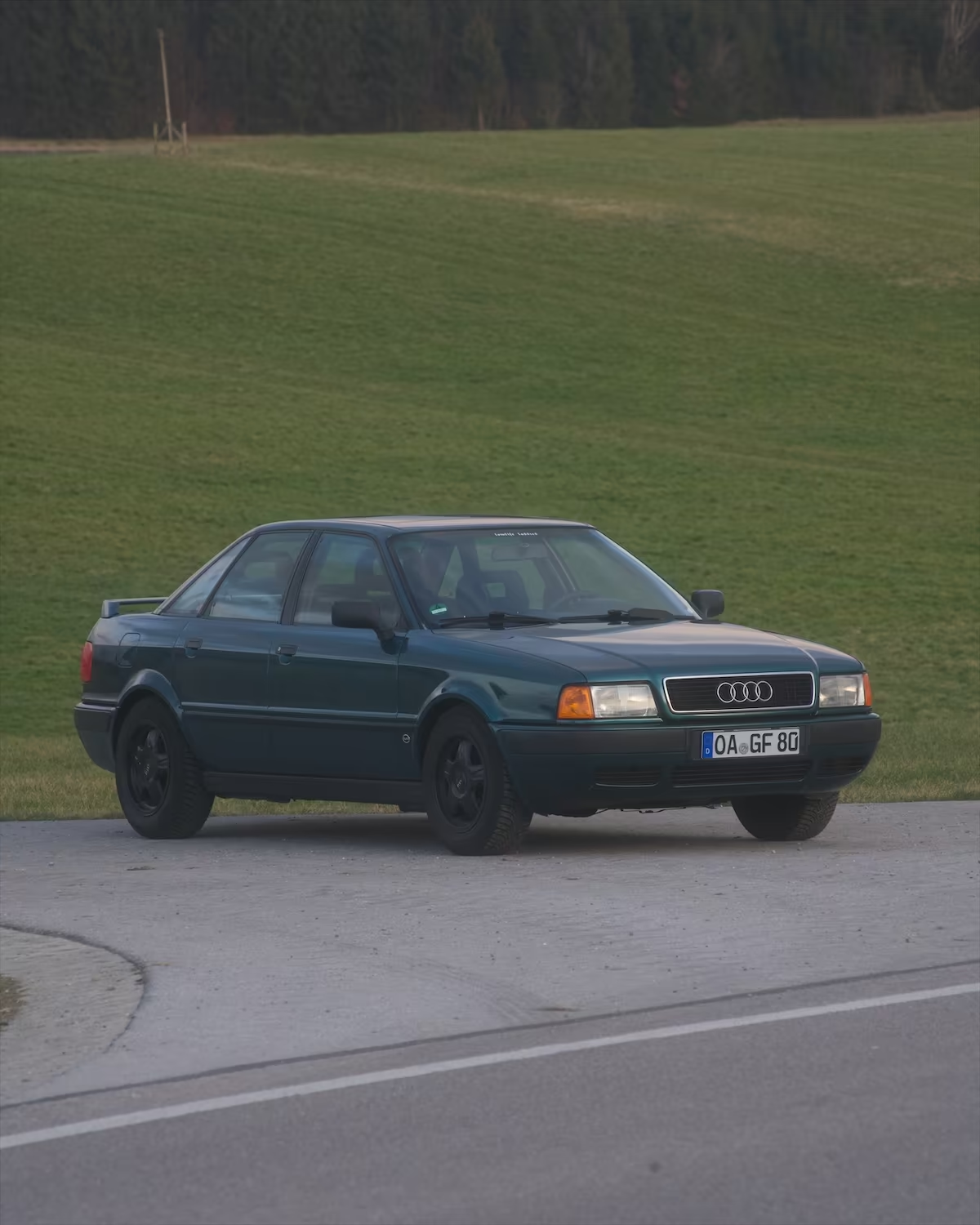
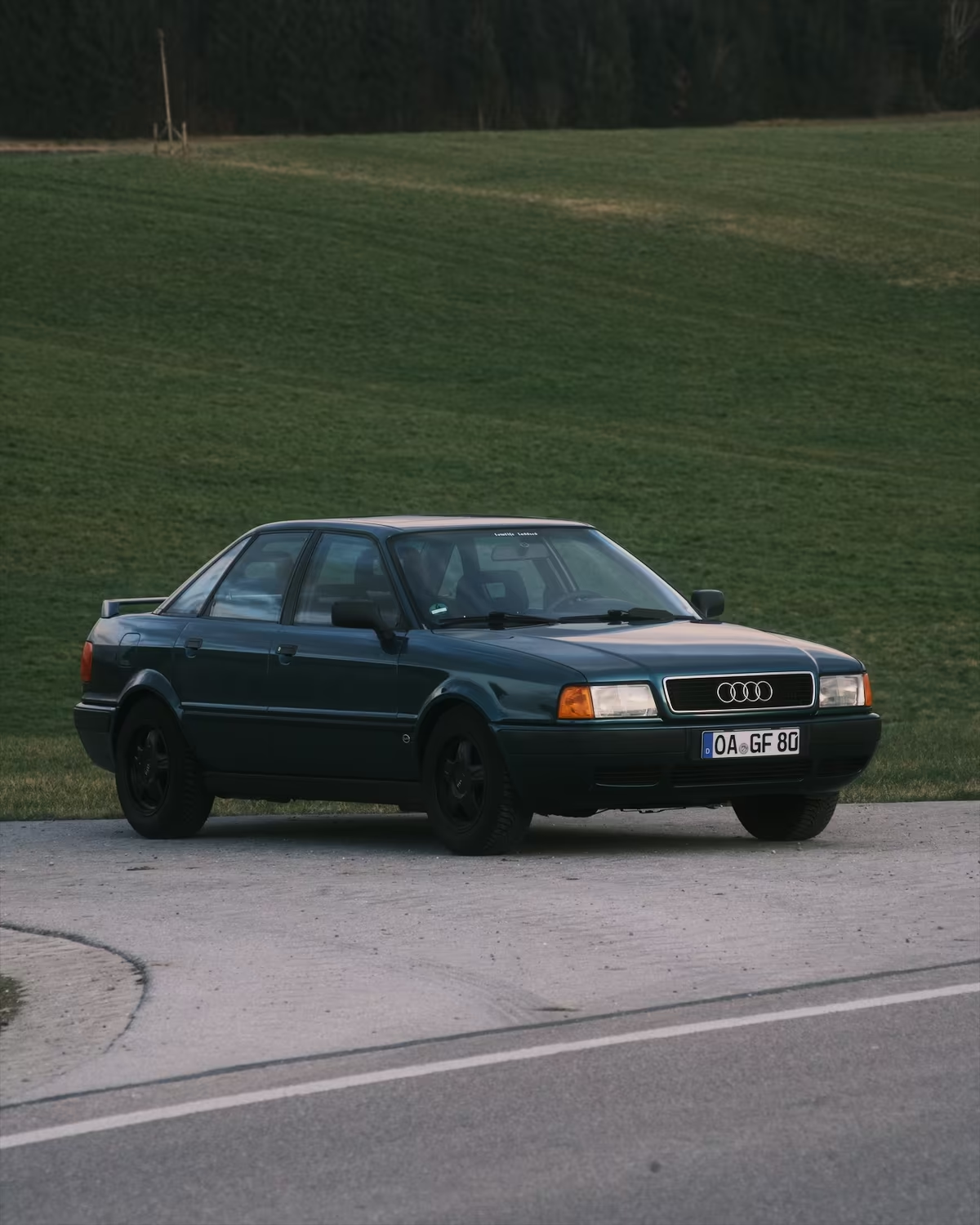
A RAW file from a Sony α7R II, before and after, rendered with masoc’s own color math: the Classic Neg profile at 100 percent, nothing else.
Where the digital look comes from.
Phones process too much. Cameras process too little.
A modern iPhone doesn’t simply take one picture. Smart HDR brings out more detail in highlights and shadows, and in medium to low light, Deep Fusion captures several images at different exposures and works through them pixel by pixel for texture, detail and less noise. Since iPhone 14 Pro, the Photonic Engine applies Deep Fusion earlier in the process. In hard light or a dim room, that is a real achievement.
It also has a signature. When bright skies are held back and shadows opened up, the photo looks even, but flat. Noise reduction smooths fine texture, and the makers of the Halide camera app have described a “watercolor effect” in low light, where whole areas of detail can vanish while outlines stay sharp. Merging frames, they write, costs fine detail too. Skin, hair and leaves can end up looking painted. Many photographers call this look over-processed.
Dedicated cameras have the opposite problem. A RAW file from a Sony, Canon or Nikon holds the raw ingredients and is meant to be processed, so it looks far less finished than the camera’s own JPEG. Straight from the file, it is usually pale and low in contrast. The JPEG is cleaner, but in a standard profile it often looks correct rather than special. That is one reason Fujifilm has built film simulations into its cameras since 2004.
Sources: Apple Newsroom on iPhone XS (September 12, 2018) and iPhone 14 Pro (September 7, 2022), Apple Support on Deep Fusion in iOS 13.2, Lux (Halide) on the iPhone 14 Pro camera (November 1, 2022) and Process Zero (August 14, 2024), Adobe on RAW vs. JPEG and Fujifilm’s film simulation overview, all checked in October 2026.
What actually helps.
Less processing at the start, more intent at the end.
- Shoot RAW. Apple ProRAW combines RAW data with iPhone processing and leaves exposure, color and white balance open for editing. On a camera, use its RAW format.
- Go easy on sharpening and Clarity. Detail looks natural when nobody pushed it. Pulling Texture and Clarity down a little softens skin without blurring it.
- Build contrast with a curve. A gentle S curve deepens shadows and rolls off highlights, the way film does. Pulling Highlights down and Shadows up flattens the photo again.
- Add a little grain. Fine grain breaks up the perfectly smooth surfaces that give digital away. Around bright lights, a touch of halation adds the soft red glow of color film.
- Pick a look. A film profile sets color and tone in one step, so the rest of your edit starts from a mood instead of a flat file.
Apple points the same way. Since iPhone 16 Pro, Photographic Styles can change tone and color after a photo is taken, and iPhone 18 Pro adds texture and grain controls. Halide’s Process Zero skips the merging entirely and gives a single frame that its makers call less saturated, softer and grainier. Both are good starts. A film profile goes further, with a whole color palette, and it works on photos from any camera.
The same idea is built into IIWII, the film camera app by the developer of masoc. Its Natural Processing captures a single frame instead of Apple’s multi-frame fusion, for softer detail, natural grain and truer skin. It’s on by default on iOS 18 and later, under Settings › Processing & Export, and can sit as a button in the top bar.
Sources: Apple Support, About Apple ProRAW, Apple Newsroom on iPhone 16 Pro (September 9, 2024) and iPhone 18 Pro (September 9, 2026), checked in October 2026.
Film profiles, sorted by mood.
22 looks are built into masoc. Pick by feeling, not by film stock.
- Quiet and true
- Provia, Astia, Reala Ace, Pro Neg Std
- Clean color with a gentler tone curve than a phone. Good for travel, family and everyday photos.
- Muted and calm
- Classic Chrome, Classic Neg, Eterna
- Less saturation, deeper shadows, softer highlights. The quickest way out of a loud, over-bright phone photo.
- Warm and nostalgic
- Portra 400, Kodak Gold, Polaroid
- Warmer color and softer contrast, made for people and late light. This is where the Kodak Portra look lives.
- Night and neon
- Cinestill 800T
- Cool shadows and warm lights, made for city nights, street lamps and neon signs. Add Halation for the red glow around every lamp.
- Black and white
- Acros, Ilford Delta, Ilford Delta Faded
- Without color, light and shadow do all the work. A good test of whether a photo has depth at all.
- Old and odd
- Autochrome, Classic Cuban, Coffee, Summer Glow, and four creative looks
- Stronger color shifts for when a photo should look its age, or not like a photo at all.
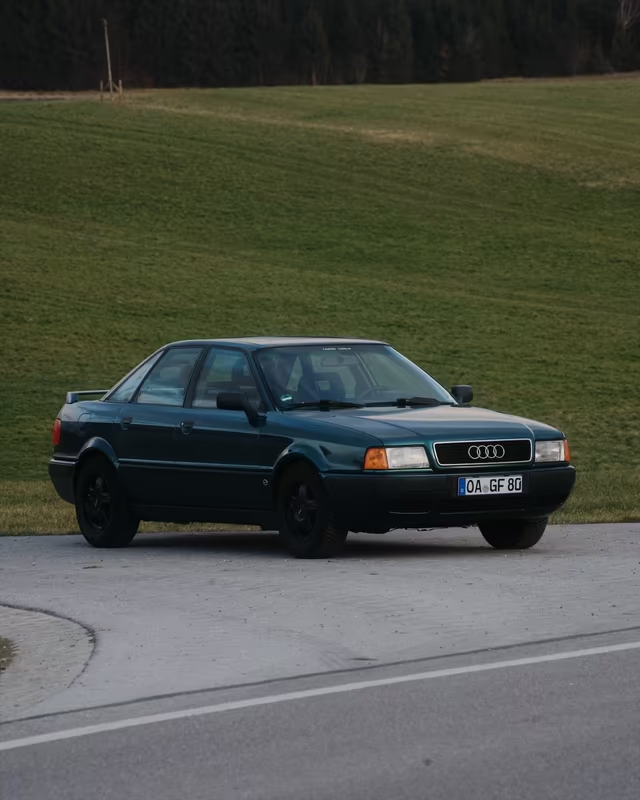
Classic Chrome 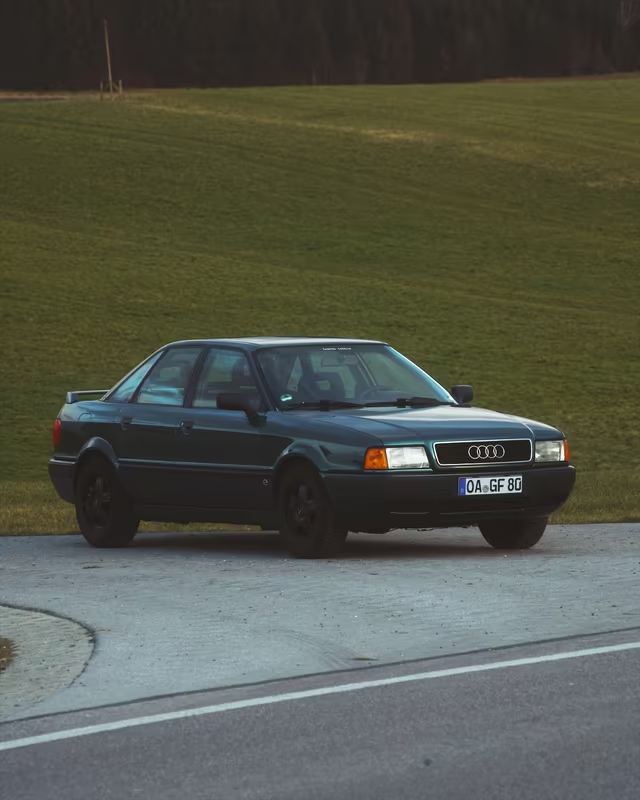
Kodak Gold 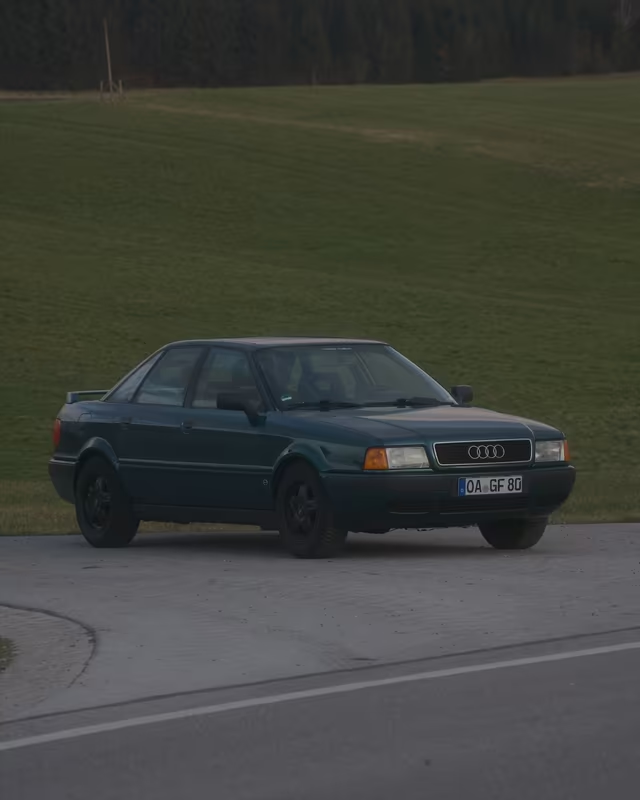
Eterna 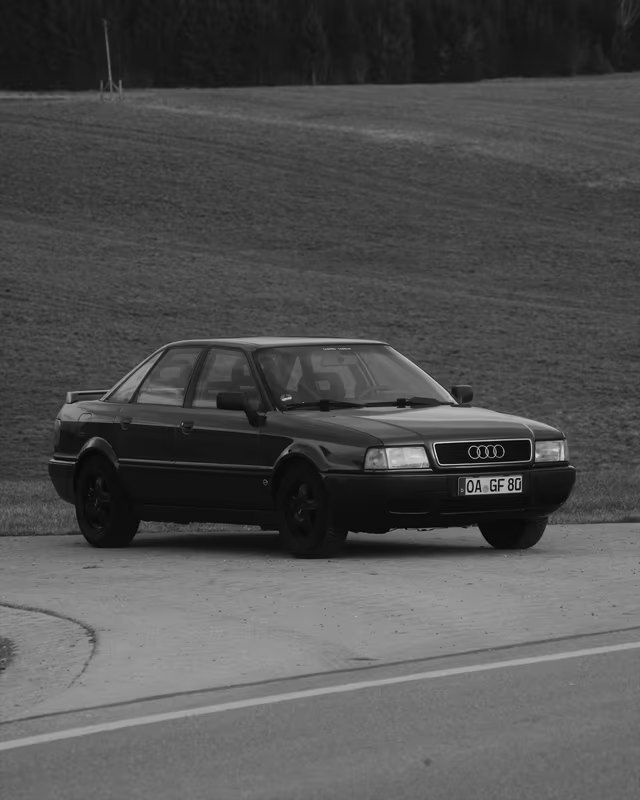
Acros
The same Sony RAW with four built-in profiles at 100 percent. The Fujifilm looks go through F-Log2, as in the app.
One look per mood is a good start. Night photos are their own topic: see the CineStill 800T look and the new halation in masoc 1.1, which works on video too. All 22 profiles side by side are on film simulations, and ready-made settings for each are in our film recipes.
From flat to film in masoc.
Five steps, the same on iPhone, iPad and Mac.
- Open the photo. RAW from your camera, Apple ProRAW, JPEG or HEIC.
- Pick a profile under Looks › Profiles. On Mac and iPad, hover a look to preview it on your photo.
- Set the intensity from 0 to 120 percent. It starts at 100.
- Shape the light. Exposure, the light sliders and Light › Tone Curve act after the look, so you keep adjusting on top of it.
- Finish under Effects. Add Grain with Size and Roughness, and Halation for a glow around bright lights. Keep Sharpness and Clarity low.
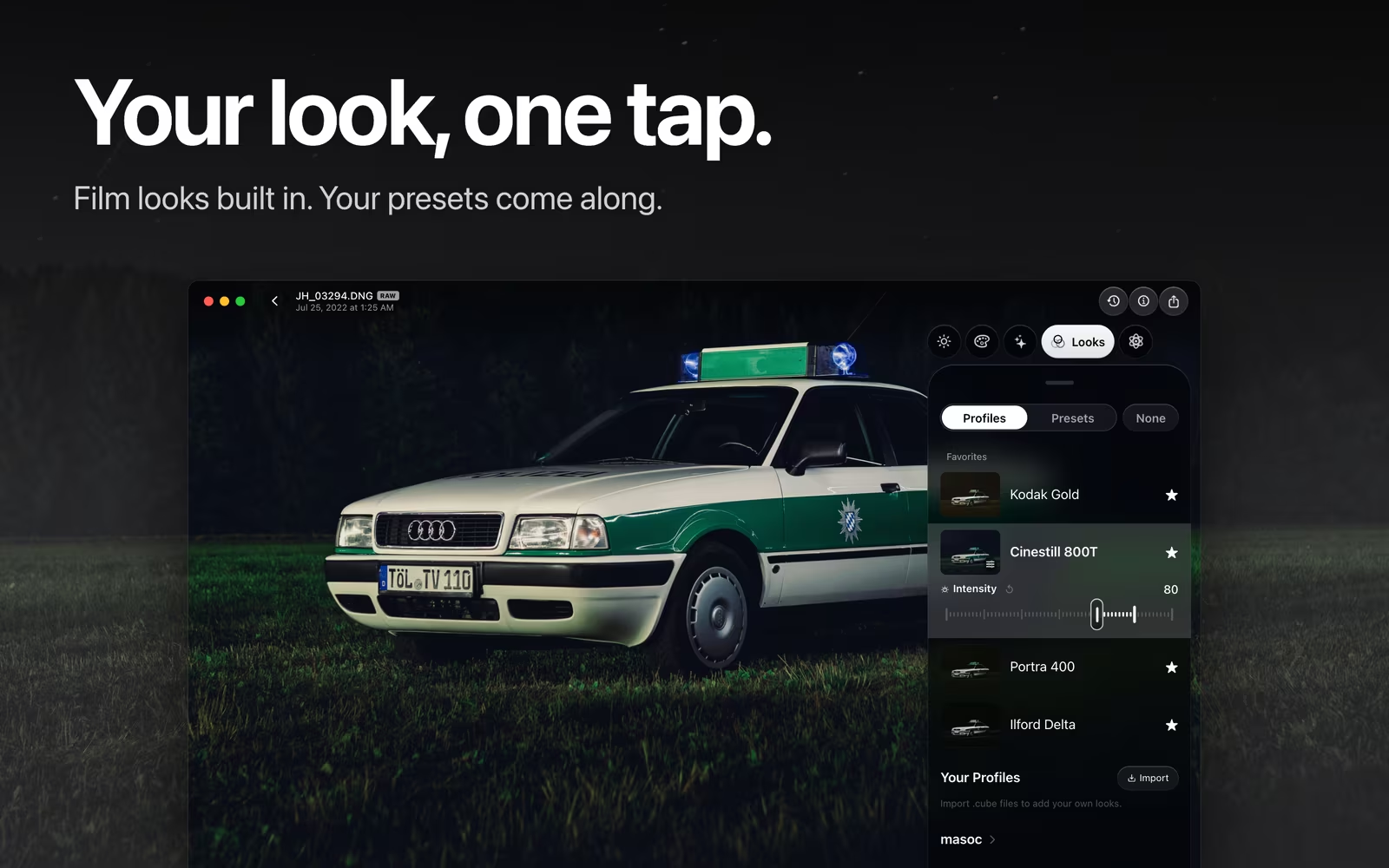
Want the look while you shoot? IIWII, the film camera app by the developer of masoc, shows the same looks live in the viewfinder, built on the same color tables. With RAW+ on, a DNG lands beside every photo, ready for masoc. The whole route is on iPhone RAW with a film look. IIWII is on the App Store.
Your own .cube LUTs work too, next to the built-in ones. More about film looks in masoc. masoc is free to download, with every tool and three free exports: get masoc on the App Store.
Questions
- Why do my iPhone photos look over-processed?
- An iPhone merges several frames into one photo. Smart HDR holds back bright areas and opens up shadows, and noise reduction smooths fine texture. The result is even and detailed, but it can look flat, with skin and leaves that look painted.
- How do I make digital photos look like film?
- Start from RAW or ProRAW, keep sharpening and Clarity low and build contrast with a gentle tone curve. Then pick a film look and add a little grain. In masoc, the looks are under Looks › Profiles, with an intensity from 0 to 120 percent.
- Can I get Fujifilm film simulations on iPhone?
- masoc has looks inspired by eight Fujifilm simulations: Provia, Astia, Classic Chrome, Classic Neg, Reala Ace, Eterna, Pro Neg Std and Acros. They are not official Fujifilm simulations, and they work on photos from any camera, including iPhone.
- Is there a Kodak Portra look for iPhone photos?
- Yes. masoc includes a Portra 400 profile, plus Kodak Gold, Cinestill 800T and Polaroid. They are inspired by these films, not made by Kodak or CineStill. Use one at a lower intensity for a softer result.
- How do I get masoc?
- Download it from the App Store for iPhone, iPad and Mac. It’s free to download, with every tool and three free exports. After that, Unlock masoc lets you export as much as you like.
Fujifilm, Provia, Astia, Classic Chrome, Classic Neg, Reala Ace, Eterna, Acros, Kodak, Portra, Kodak Gold, CineStill, Polaroid, Ilford, Delta, Sony, Canon, Nikon, Apple, iPhone, ProRAW, Smart HDR, Deep Fusion and App Store are trademarks of their respective owners. The looks in masoc are inspired by these films and are not official film simulations. masoc and IIWII are not affiliated with these companies.